
Pinterest automatically saves your search history to personalize your experience and make it easier to return to topics you’ve explored before.
However, there are plenty of reasons why you might want to clear Pinterest search history – whether for privacy on a shared device, to refresh your search recommendations, or simply to clean up outdated searches.
Why Clear Your Pinterest Search History?
- Privacy on shared devices. If you share a computer, tablet, or phone with family members, your search history reveals your interests, projects, and browsing habits. Clearing your search history ensures others won’t see what you’ve been researching, whether it’s gift ideas, personal projects, or any searches you’d prefer to keep private.
- Refresh search suggestions and recommendations. Pinterest’s algorithm uses your search history to personalize your experience and recommend content. If your interests have changed significantly or you’ve been searching for one-time projects that no longer reflect your ongoing interests, clearing your search history can help Pinterest provide fresher, more relevant suggestions.
- Clean up irrelevant or outdated searches. Over time, your search history becomes cluttered with searches from old projects, seasonal interests, or topics you’re no longer exploring. If you spent months planning a wedding and now want Pinterest to focus on home decorating instead of wedding-related suggestions, clearing those searches helps redirect the algorithm.
- Start fresh for new projects or life changes. Major life transitions often come with completely new Pinterest interests. Clearing your search history gives you a clean slate for Pinterest to learn about your new interests and priorities.
Pinterest’s personalization algorithm is sophisticated, so managing your search history thoughtfully can significantly impact the quality of content you see in your feed.
How to Clear Pinterest Search History on Mobile (iOS & Android)
The Pinterest mobile app makes it simple to manage your search history:
Step 1: Open the Pinterest app on your mobile device and make sure you’re logged in.
Step 2: Tap the search bar at the top of your home feed. This brings up a list of your recent searches (usually your last 10–15).
Step 3: To remove a search term, tap the small “X” icon next to it.
Step 4: Repeat for each search you want to remove.

Clearing your search history on mobile syncs across all devices where you’re logged into the same Pinterest account.
How to Clear Pinterest Search History on Desktop
On desktop, the process works in a similar way:
Step 1: Open Pinterest in your web browser and log into your account.
Step 2: Click the search bar at the top of the Pinterest homepage. A dropdown will appear showing your recent searches.
Step 3: Click the small “X” icon next to any search term you’d like to delete.
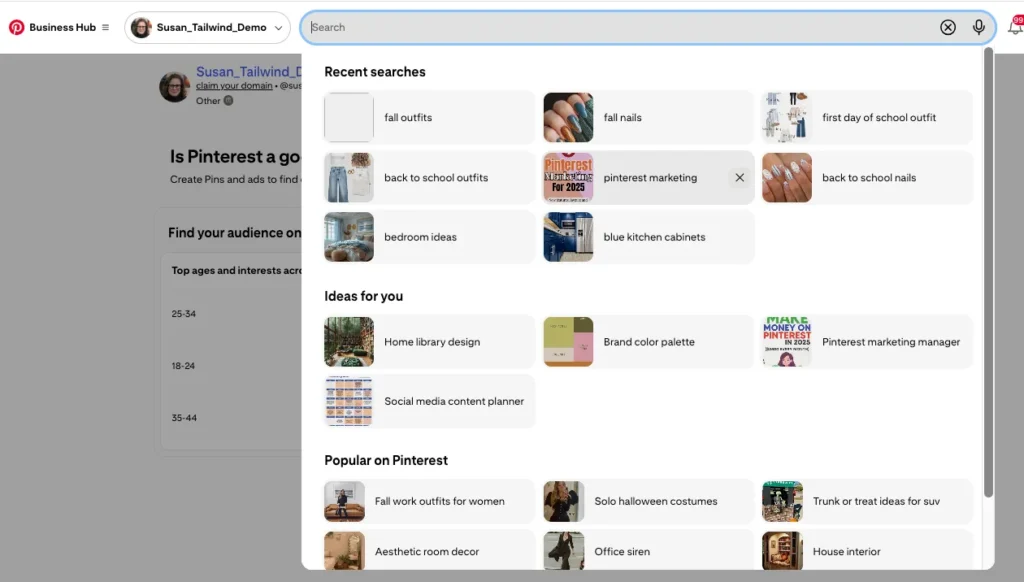
Step 4: Refresh if needed. Occasionally, cleared search history might still appear until you refresh the page.
Troubleshooting Search History
- Still seeing old searches after clearing? Try logging out of Pinterest completely and logging back in. This forces Pinterest to refresh your account data.
- Clear option not appearing? Make sure your Pinterest app is updated to the latest version. Check your device’s app store for Pinterest updates.
- Desktop browser issues? Clear your browser’s cache and cookies. Pinterest stores some search data in your browser’s local storage.
- Searches reappearing? If you use Pinterest on multiple devices, give it a few hours for changes to sync across all devices.
Tips for Managing Pinterest Searches
- Use secret boards strategically. Instead of relying solely on clearing search history for privacy, use Pinterest’s secret board feature for sensitive content. Secret boards don’t influence Pinterest’s recommendations as strongly and keep your saves completely private.
- Clear searches regularly if sharing devices. If you share computers or mobile devices with others, make clearing Pinterest search history part of your regular privacy routine.
- Coordinate with other privacy settings. When you clear your search history, review other aspects of your Pinterest personalization, such as your interests in profile settings and accounts you follow that no longer align with your current interests.
- Strategic partial clearing. Instead of clearing all your search history, selectively remove searches that no longer serve you while keeping relevant ones. You might clear old seasonal searches while keeping ongoing interests like “healthy recipes.”
For content creators using Pinterest, Tailwind’s free Pinterest keyword tool can help identify trending search terms your audience uses, informing your content strategy while managing your own search privacy.
Understanding Pinterest’s Data Use
Pinterest uses your search data for:
- Personalization and recommendations to show relevant content in your feed and search results
- Advertising targeting to help advertisers reach relevant audiences
- Trend analysis in aggregate to identify trending topics (anonymous data)
Clearing your search history affects these personalizations but Pinterest will quickly relearn your preferences based on ongoing activity.
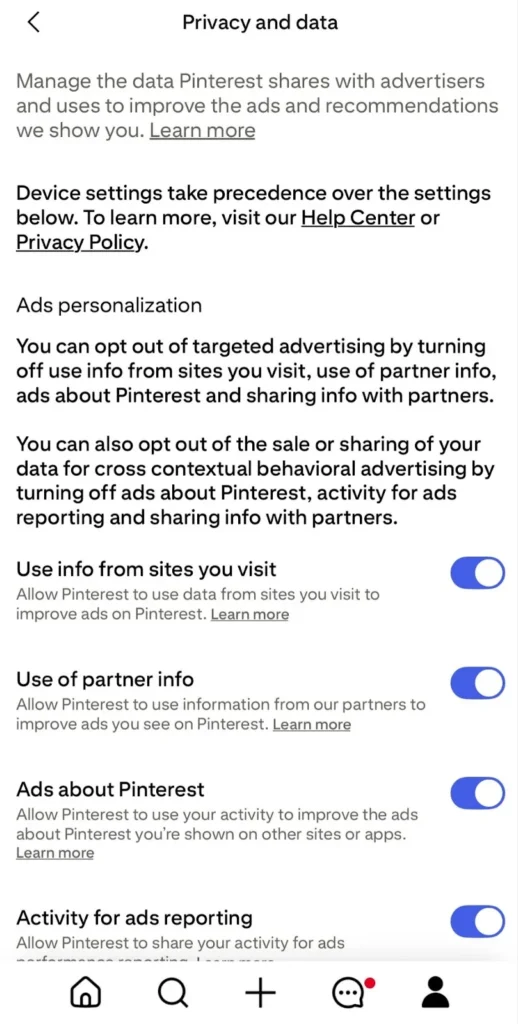
You can see how Pinterest uses your data bin the “Privacy and data” section of your settings. Open your account and select Privacy and data.
You’ll have the option to control some of your data by using the on/off toggles.
Frequently Asked Questions About Pinterest Search History
Does clearing Pinterest search history affect my saved Pins and boards?
No, clearing your search history only removes the record of what you’ve searched for. It doesn’t affect any Pins you’ve saved, boards you’ve created, or accounts you follow. Your saved content remains completely intact.
How often should I clear my Pinterest search history?
This depends on your privacy needs and how your interests change. Some users clear their history monthly, while others only do it when starting new projects or after major life changes. There’s no universal “right” frequency.
Will clearing my search history affect my Pinterest ads?
Clearing your search history may temporarily affect ad relevance, since search data is one signal Pinterest uses for ad targeting. However, Pinterest will quickly adapt based on your ongoing activity and saves.
Can I recover cleared Pinterest search history?
No, once you clear your Pinterest search history, it cannot be recovered. Pinterest doesn’t provide a way to restore deleted search data.
Can other Pinterest users see my search history?
No, your Pinterest search history is private and not visible to other users. However, your search activity may influence what Pinterest shows you in public feeds, which could indirectly reflect your interests to others.