What the Tailwind MCP Server is
You can now run most of your Pinterest workflow from the AI assistant chat window you already have open. Connect Tailwind to ChatGPT, Claude, Gemini or a coding tool like Cursor, and your assistant can do all sorts of things: draft Pins from a blog post, put them on your Smart Schedule, fix a typo across fifty queued Pins, score a board against a keyword, and tell you which Pins drove clicks last month — all without opening the Tailwind dashboard.
That’s what the Tailwind MCP Server does – it lets AI agents talk to and use the software tools you already use. Tailwind hosts one at mcp.tailwind.ai (overview at tailwindapp.com/mcp), and the same server powers the Tailwind app in ChatGPT, the Tailwind connector in Claude and the one-command install for coding agents.
You sign in to Tailwind once, approve access, and from then on your assistant works inside your account with your oversight.
When the MCP server launched a few months ago, it was pretty basic, with just a few tools.
Today, the Tailwind MCP server has over 70 tools your AI agents can use – including some that haven’t made it to the Tailwind dashboard yet!
Using the Tailwind MCP server gives you the power of Tailwind’s data and depth of functionality for Pinterest marketing, combined with the flexibility for your AI agents to build custom workflows that work perfectly for your business. And you’re still the Editor in Chief, keeping control of everything that gets published on your behalf. That’s AI-assisted Pinterest marketing in practice: the assistant does the work, you keep the judgment.
Where it runs. Tailwind connects to ChatGPT through an official Tailwind app (no developer mode needed), Claude on the web and desktop (as a custom connector), Gemini (as a custom app), and to Claude Code, Cursor, Codex and OpenCode with one terminal command. Setup for each is at the bottom of this post.
What you see in ChatGPT and Claude. Tailwind ships app cards: interactive views that render right in the conversation. Ask for your schedule and you get a calendar with weekly, 3-day and monthly views, a switcher between your Pinterest accounts, and a card for every scheduled, published, failed and missed Pin (a failed Pin’s card tells you why). Draft or schedule a Pin and it comes back as a Pin card, not a wall of JSON. In ChatGPT the calendar also lives in the sidebar, so you can keep it open while you work. Coding tools without a card view get the same data as text.

Ask for your scheduled Pins in ChatGPT and they come back as cards, each with its status, publish time and a link into Tailwind.
The full capability list, grouped by job
Seventy-plus tools is a lot to hold in your head, so here they are grouped by what you’d ask your assistant to do. Every group is live on the server today; the tool names are listed under each one in case you want to call one by name.
Pins — create and schedule
Create a Pin from an image or video URL, or from a file you attach (Canva export, phone photo). Save it as a draft, or schedule it to your next open Smart Schedule slot or a time you name. Make 2–5-image carousel Pins. Publish one Pin across up to 20 boards spaced days or weeks apart (Interval Pinning). Add product tags.
Credits: Drafts: no. Scheduling: a Pin credit per Pin on credit plans.
Tools: create_post, create_media_upload, schedule_post
Pins — review and edit
List drafts, queued, published, failed and missed Pins. Read one Pin or look at its image. Edit a title, description, link, board, section, alt text or product tags on any unpublished Pin. Fix the same mistake across up to 50 Pins at once, with a before-and-after preview you approve first. Pull a Pin off the schedule back to draft, or delete an unpublished one.
Credits: No.
Tools: list_posts, get_post, get_post_image, update_post, preview_update_posts, update_posts, unschedule_post, delete_post
Pins — AI drafts from your content
Paste a blog post or product page URL – or tell your agent to go find your latest ones for you! – and get Pin drafts with images and copy, in three design options (Photo only, Basic, Premium with six styles). Check progress, cancel a queued run. Have Ghostwriter write titles and descriptions in your saved brand voice.
Credits: Yes — roughly 1–7 credits per generation; 1 per Ghostwriter call.
Tools: generate_pins_from_url, get_generation_status, cancel_generation, generate_pin_copy, get_copy_generation_status
Pin designs – edit and iterate
On an AI-drafted Pin: see the design variations, switch between them, re-render a template design with new overlay text, colors or image, revert to the original photo, or regenerate a Premium design with feedback (“bigger text, warmer colors”).
Credits: Switching, re-rendering, reverting: no. Regenerating: ~7.
Tools: get_pin_design, select_pin_design_variation, update_pin_design, revert_pin_design, regenerate_pin_design, get_design_regeneration_status
Site & RSS automation
Preview a site’s feed, connect it so every new post drafts a SmartPin automatically (plus new Fresh Pins on a recurring schedule you can set; everything lands as a draft for you to review), set the design tier and keywords it uses, pause, resume, or disconnect it.
Credits: Connecting: no. Each SmartPin it drafts: yes.
Tools: preview_feed, connect_feed, list_feeds, get_feed, update_feed, delete_feed
Boards and Board sections – create, update, delete
List your boards with Pin counts, follower counts and when each last changed (find the boards that have gone quiet). Create, rename or describe a board; create a secret one. Add, rename or remove sections. Delete a board (with a confirmation step — this destroys its Pins on Pinterest).
Credits: No.
Tools: list_boards, create_board, update_board, delete_board, list_board_sections, create_board_section, update_board_section, delete_board_section
Board lists – use, create, edit, delete
Read, create, reorder and delete your saved board lists, then publish a Pin across one with Interval Pinning.
Credits: No.
Tools: list_board_lists, create_board_list, update_board_list, delete_board_list
Board SEO & group boards
Score how well a board’s real Pins cover a keyword, with the Pins that earned the score. Save existing Pins onto a board. Find public group boards for a topic as a benchmark. Ask for Pins from across Pinterest worth adding to a board for a keyword, then save the ones you pick.
Credits: Scoring: 1 credit per board. Saving Pins: like scheduling, except free (up to 50 Pins) onto a board you created in the last hour.
Tools: get_board_keyword_relevance, save_pins_to_board, list_group_boards, get_recommended_pins
Your schedule – view, add or edit timeslots, Pin Spacing rules and more
Show the recurring weekly Smart Schedule times, or the actual next 14–60 days with which slots are open. Open the interactive calendar. Add, move or remove a posting time. Regenerate the whole schedule from scratch (confirmation required — it replaces every time). Check the Pin Spacing rule that applies to a URL. Pause and resume all publishing on an account.
Credits: No.
Tools: list_timeslots, get_schedule, open_schedule_calendar, create_timeslot, update_timeslot, delete_timeslot, rebuild_schedule, list_pin_spacing_rules, get_pin_spacing_rule, pause_publishing, resume_publishing
Results
Account-wide impressions, engagement, saves and clicks with a daily series (organic, paid or blended). Your top Pins ranked by engagement, saves, impressions or clicks — grouped by board or by format (video, carousel, standard). One Pin’s performance and lifetime totals. A complete inventory of every Pin on the account, however it was published. Up to 90 days back.
Credits: No.
Tools: get_account_analytics, list_top_pins, get_pin_analytics, list_pins
Keywords
Read your Saved Keywords list (including the ones tied to a given URL), add terms, tag and untag them, remove them.
Credits: No.
Tools: list_saved_keywords, save_keywords, tag_saved_keywords, untag_saved_keywords, delete_saved_keyword, delete_saved_keywords
Account & plan
List connected Pinterest accounts, read one account’s details, get a link to connect another or reconnect an expired one, check whether a plan is active, and see credits and posts remaining and when they reset.
Credits: No.
Tools: list_accounts, get_account, connect_pinterest_account, list_subscriptions, get_account_usage
Talk to Tailwind and request features
Send a feature request or report a wrong result to the team, in your own words, from inside the chat.
Credits: No.
Tools: request_capability, report_issue
Two important rules the server enforces on your behalf.
- Anything that publishes, spends credits, deletes a board or Pin, overwrites many Pins or rebuilds your schedule is marked as a sensitive write, so a well-behaved assistant shows you the details and asks before doing it.
- And when you have more than one Pinterest account connected, the server tells the assistant to ask which one you want to work on rather than guess — name the account in your prompt (“on my @shop account”) and it never comes up.

Five workflows you can run from a chat today
The list above is the inventory. Here are five common jobs, written as the prompt you’d type.
1. New blog post → Pins on the schedule
“Generate Pins from https://yoursite.com/fall-soup-recipes with Tailwind using the Basic design, then show me the drafts.”
Your assistant starts a SmartPin generation, waits for it (1–3 minutes), and shows you the drafts as Pin cards. Then:
“Schedule the first two to my Soup Recipes board at my next open slots. Delete the third.”
The scheduling step uses your Smart Schedule and honors your Pin Spacing rules for that URL, so two Pins to the same post land days apart instead of back to back. If you’d rather not pick a design tier, the Photo only option uses the page’s own images — keep your in-post images vertical (1000×1500) and it works well for product pages.
ADVANCED: “Every day check for new blog posts I published; for each one, find the most relevant Pinterest Boards I can publish to, then create and schedule a new Pin for each one, spaced at least 3 days apart from each other. Then, draft a new Pin for that post for each Board once a month for the next 6 months.”
The numbers are just placeholders, but you get the point – you can build completely customized, evergreen workflows while still getting Fresh Pins created for you. Scale this up across the relevant blog posts or product pages on your site and you’ll have an always-on Pinterest marketing content engine!
2. Your own graphics → Pins with Ghostwriter copy
Attach the Canva exports to the chat and say:
“Make a Pin draft for each of these images, linking to my shop page. Write the titles and descriptions with Ghostwriter using my saved keywords for that URL.”
The assistant stages each file, pulls the keywords you’ve saved for that link, has Ghostwriter write copy in your brand voice, and leaves you drafts to approve. Attached files only work in assistants that pass attachments through (ChatGPT and Claude do; most coding tools want a public URL instead).
ADVANCED: Save your Canva-made Pin images to a specific folder, then tell your agent: “Set up a recurring check of this folder for new Pin images. When you find one, match it to the right URL on my site and then use Tailwind Ghostwriter to write the Pin copy and schedule the Pins.”
Once again, this creates a system where even if you want to create Pins by hand in Canva, you can still automate the back end of the process to save hours each week!
3. The weekly review
“Show me everything queued for next week as a calendar. Then list my drafts.”
The calendar card shows the week with every Pin in place and flags anything that failed or was missed. If you spot a wrong link in a batch:
“Every queued Pin linking to /old-page should link to /new-page. Show me the before and after first.”
That’s the bulk edit: the assistant reads the queue, computes the change for each Pin, shows you a before-and-after for up to 50 at once, and only saves when you say so. Edits are free and don’t move any Pin’s publish time. If you’re reviewing SmartPin drafts from an RSS feed, this is the same loop — approve, fix, or delete, in one conversation instead of a calendar block.
4. The board audit
“How well does my Coastal Decor board cover ‘coastal living room’? Which of my boards haven’t had a new Pin in 90 days?”
The first question scores the board’s real Pins against the keyword (one credit) and returns the Pins that earned the score. The second reads board metadata and costs nothing. From there: rename a board with the keyword in it, add a section, or create a new board and move the next batch there. The reasoning behind keyword-led boards is in Pinterest board SEO.
ADVANCED: “Review the content on my website each month and suggest 5 new Pinterest Boards I should build based on natural content clusters. Use my browser to find the best-fit Keywords in Tailwind to feature on each Board. Then, use Tailwind’s get recommended pins tool to seed each Board. After that, schedule Pins for my relevant content pages to publish to the Board, spreading them out over the next 30 days.”
Now your system is getting really powerful! Feeding into your Pinterest SEO strategy, starting new boards for you and warming them up before your Pins get there – so you have a better chance of ranking once they are published!
5. What worked last month
“Top 10 Pins by outbound clicks in September, organic only, grouped by board.”
You get the ranking in Pinterest’s own order with the metric named, plus each Pin’s format and board, so “video outperformed static on my Recipes board” is a question the assistant can answer rather than a hunch. Follow up with one Pin’s lifetime numbers, or an account-wide daily series for the same window. Analytics reads are free and go back 90 days. For what Pinterest is actually rewarding in that data, see how Pinterest ranks Pins.
The pattern in all five: the assistant reads, drafts and proposes; you approve the part that touches Pinterest. That’s AI-assisted, still authentic, and it is also what Pinterest’s developer terms require.
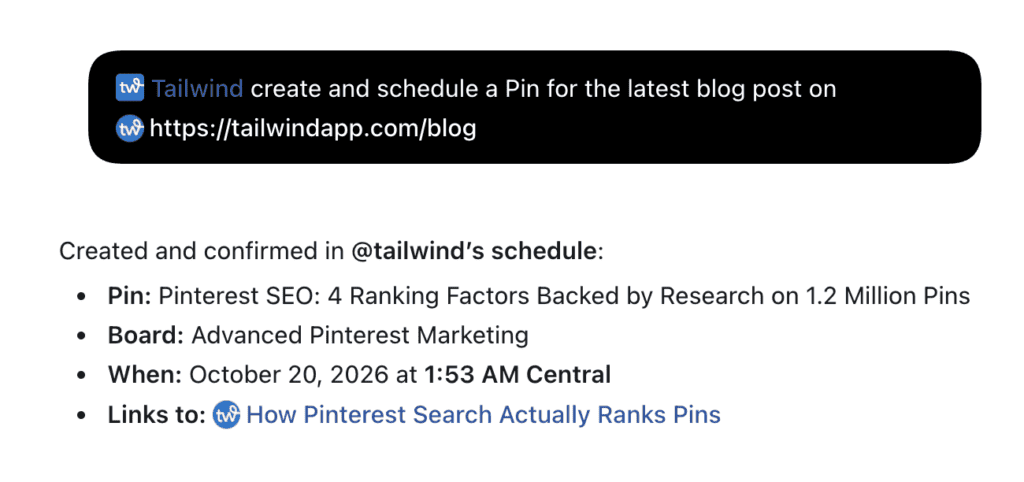
One sentence in, one scheduled Pin out: the assistant drafts the Pin from the page, picks the board and the next open slot, and confirms what it did.

What it will not do (yet)
It won’t publish a Pin you haven’t chosen. Pinterest’s developer terms require a person to select each Pin, and tools that publish on their own can get an account suspended. Instead: Let it draft and queue; you approve. A queued Pin is still your choice — it publishes at its time because you scheduled it.
It won’t edit or delete a Pin that’s already live on Pinterest. Published Pins belong to Pinterest, not Tailwind. Instead: Edit it in the Pinterest app; your agent can do this in your web browser for you if it has its own browser extension (Claude and ChatGPT both do). Unschedule queued Pins before they go out if you’re unsure.
It won’t change a Pin’s image after it’s created. A Pin’s image is fixed once the Pin exists. Instead: Delete the draft and create a new one (free while it’s a draft).
It won’t do keyword research without using your browser. The server reads and manages your Saved Keywords; it doesn’t discover new ones or report volume yet. Instead: Research in Keyword Research (it has a limited one-time free preview), save the winners, then your assistant can use them in every Pin. Or give your assistant browser access and let it do the research in the browser for you. Our guide to Pinterest keyword research walks through the method.
It won’t change Pin Spacing rules. Read-only on purpose; it’s an account-level safety setting. Instead: Set them in the dashboard; the assistant will tell you which rule applies to any URL.
It won’t touch Turbo Groups. No assistant tool exists for them yet. Instead: Turbo lives in the Tailwind app under My Groups.
It won’t guess which Pinterest account you mean. Guessing is how Pins land on the wrong account. Instead: Name the account in the prompt.

Setting it up
Every option below signs you in to Tailwind through your browser and approves access — you never paste an API key into a chat. Full, current instructions with screenshots are in the setup guide; this is the short version.
ChatGPT
Open the Tailwind app in ChatGPT, click Connect, sign in. In a new chat, pick Tailwind from the tools menu.
Good to know: No developer mode, no custom app. On Business, Enterprise or Edu a workspace admin may need to allow it first.
Claude (web and desktop)
Settings → Connectors → Add custom connector → https://mcp.tailwind.ai → sign in. Then enable Tailwind from the + menu in a conversation.
Good to know: Custom connectors are in beta on Pro, Max, Team and Enterprise. On Team/Enterprise an org owner adds it first. If Claude says it has no Tailwind tools, ask for “the Tailwind connector” by name or set tool access to Tools already loaded.
Gemini
gemini.google.com/apps → Custom apps → paste https://mcp.tailwind.ai → Connect → sign in. Type @ in a prompt and pick Tailwind.
Good to know: Google currently limits custom apps to personal accounts, 18+, in the US, in English. Works in the mobile app once connected.
Claude Code, Cursor, Codex, OpenCode
One command: npx @tailwind-app/skills — it detects your tools, asks before writing anything, and installs a usage playbook. Or add https://mcp.tailwind.ai by hand.
Good to know: Needs Node 20+. Restart the agent afterwards.
Anything else that speaks MCP
Add https://mcp.tailwind.ai as a Streamable HTTP server.
Good to know: Clients without the OAuth discovery flow can use an API key from Settings → Integrations as a fallback.
Then verify it with the four prompts the docs suggest: List my Pinterest accounts · What boards do I have? · Show me my queued Pins · Create a draft Pin from this image URL.
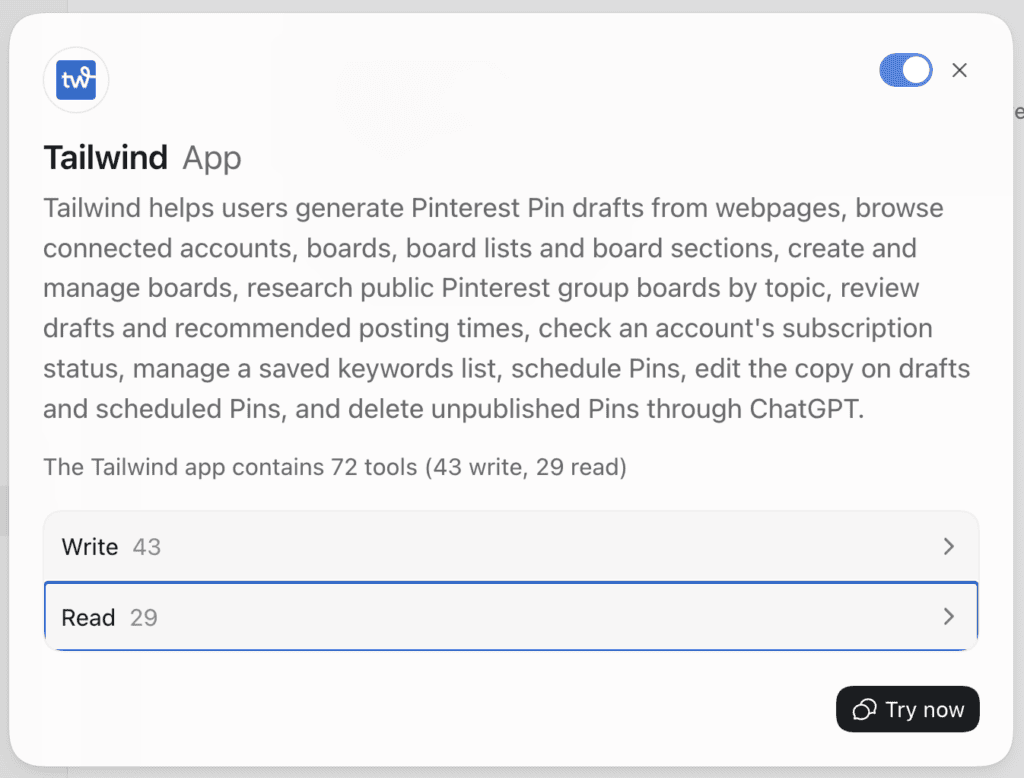
The Tailwind app in ChatGPT. Every tool is labeled read or write, so you can see what the assistant can look at and what it can change.
Save this guide for later. Pin whichever of these fits your boards best.


FAQ
Is this allowed under Pinterest’s rules? Yes. Tailwind is a Pinterest partner (the longest-standing developer partner, since 2012), the server publishes through Tailwind exactly as the dashboard does, and it keeps the per-Pin human choice Pinterest requires. What Pinterest prohibits is unapproved scrapers and bots that publish on their own; this is neither.
Does it cost credits? Reading anything, editing Pins, managing boards and schedules, and saving drafts are free. Scheduling a Pin spends a Pin credit on credit-based plans, and AI generation (SmartPins, Ghostwriter copy, Premium redesigns) spends credits by design tier — the same as in the dashboard. Ask your assistant how many credits do I have left? before a big batch; that read is free.
Can my assistant see my Pin images? In Claude and most coding tools, yes — it can read the words on a graphic to match drafts to copy. ChatGPT currently passes only a text summary of the image, so there it can describe the Pin but not read the design.
Which assistant is best? The one you already have open. ChatGPT and Claude get the calendar and Pin cards; coding tools get the one-command install and a playbook; all of them call the same server with the same permissions, so AI-assisted Pinterest marketing works the same way from any of them.
Can I connect more than one Pinterest account? Yes, up to what your plan allows. Name the account in each prompt; the server tells your assistant to ask rather than guess when it’s ambiguous.
What if something comes back wrong? Say “report that to Tailwind” and your assistant sends the details to the team from inside the chat. Same for a feature you wish existed.
Does it write blog posts, emails or product listings? No — Ghostwriter here writes Pin titles and descriptions only. For the rest, use Ghostwriter in the app or your assistant’s own writing.
Related Resources
- Pinterest SEO: the complete guide
- Pinterest board SEO: build boards around keywords
- How Pinterest ranks Pins
- Pinterest keyword tools compared
- Pinterest holiday shopping season: start now
- Pinterest keyword research, step by step
- Shopping vs. idea keywords on Pinterest
- Pinterest SEO for ecommerce
- Tailwind MCP Server — product page · Introducing Tailwind’s MCP Server
- Tailwind Keyword Research
- Connect an AI assistant — setup guide · Tools reference · Help Center: the public API and MCP server