Tailwind on Zapier
Tailwind is now a public app on Zapier. Search for Tailwind in the Zap editor, sign in with your Tailwind account, and your Pinterest workflow can connect to the thousands of other apps Zapier supports – your content calendar, your shop, your shared drive, your team’s Slack.
That means fewer copy-and-paste jobs. A row marked “Approved” in your planning sheet can become a scheduled Pin. A new Etsy listing can get SmartPin drafts the moment it goes live. Every Pin Tailwind publishes can show up in Slack or a running log.
You’re still the Editor in Chief. Pinterest’s developer terms require a person to choose each Pin that gets published. So every recipe below is built the same way: Zapier moves images, links and copy into Tailwind, and you decide what goes out.
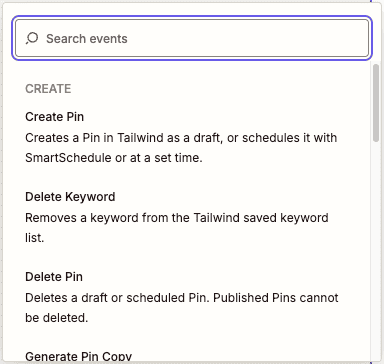
Tailwind’s actions in the Zap editor. Scroll the list to see them all.

What the Tailwind Zapier app can do
Here’s everything in the app at launch: one trigger and a set of actions.
New Published Pin (trigger)
Fires each time Tailwind publishes a Pin. Use it for every Board or limit it to one Board.
Create Pin
Creates a Pin from an image or video URL, or from a file passed along by another app. You pick the timing: Save as a draft, Next open SmartSchedule slot, or At a specific time. You can set the Board, Board section, destination link and alt text.
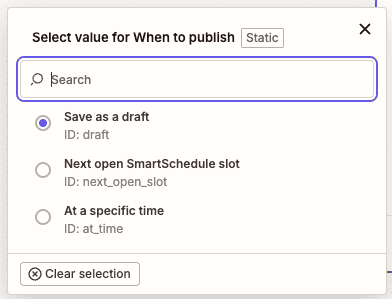
The three timing choices in Create Pin’s “When to publish” field.
Schedule, Unschedule, Update and Delete Pin
Work on drafts and scheduled Pins. Once a Pin is published on Pinterest, Zapier can’t edit or delete it.
Upload Media
Takes a file from another app – Google Drive, Dropbox, a form upload – so Create Pin can use it.
Generate SmartPins
Creates AI-designed Pin drafts from any page URL, using the Basic, Premium or No template design. If the drafts are still processing when the step finishes, a Get SmartPin Generation step fetches them.
Generate Pin Copy
Asks Ghostwriter for Pin titles and descriptions, using the brand voice set in your Tailwind account. You give it a content type, a topic, and optionally keywords and a call to action. It returns text only, so map the results into a Create Pin or Update Pin step. If the copy is still processing, a Get Pin Copy step fetches it.
Save Keywords and Delete Keyword
Add to or remove from your saved keywords list.
What uses credits
Zap steps cost the same as doing the same thing in the Tailwind dashboard:
- Uses your plan’s credits (or post allowance on older plans): scheduling a Pin (Create Pin with a publish time, or Schedule Pin), Generate SmartPins and Generate Pin Copy.
- Free to run: saving drafts, uploading media, updating, unscheduling or deleting drafts and scheduled Pins, and saving or deleting keywords.
Zapier counts tasks on your Zapier plan separately. Your plan’s credit amounts are on Tailwind’s pricing page.
Zapier, your AI assistant or Tailwind’s built-ins?
Before you build a Zap, check whether something you already have does the job.
Already built into Tailwind – no Zap needed
If you want Pins for new blog posts, SmartPin’s weekly automation and website sync already do that. Best posting times come from SmartSchedule. Check these first; a Zap that rebuilds a built-in feature is just one more thing to maintain.
Your AI assistant
Connect Claude, ChatGPT or Gemini to Tailwind when the work needs judgment or conversation: “Which of my Boards need better descriptions?” or “Draft five Pins for this post and show me before scheduling.” Everything it can do is in our guide to using Tailwind from AI assistants, and setup is on the Tailwind MCP page.
Zapier
Use Zapier to connect Tailwind to your other apps: when something happens in one of them, Tailwind takes the same step every time – or the reverse. No prompting, and it runs while you’re asleep.
10 Zapier recipes for Pinterest
Each recipe lists the apps, the steps, and what it saves you. Swap in the apps you actually use; Airtable works anywhere Google Sheets appears, and Dropbox anywhere Google Drive does.
1. Turn approved rows in your content calendar into scheduled Pins
Apps: Google Sheets + Filter by Zapier + Tailwind
- Trigger – Google Sheets: New or Updated Spreadsheet Row. Watch your Status column.
- Filter by Zapier: only continue if Status is “Approved”.
- Tailwind – Create Pin. Pick the Board in the step, then map the image URL, title, description, destination link and alt text from your columns. (For a different Board per row, use one Zap per Board, each filtered on a Board column.) For timing, choose At a specific time (mapped to your Date column) or Next open SmartSchedule slot.
What it saves you: your team plans in the sheet, you approve row by row, and nobody retypes anything into the scheduler. Marking a row “Approved” is your choice of that Pin.
Take it further: add a Google Sheets Update Spreadsheet Row step that writes back “Scheduled” and the Tailwind post ID that Create Pin returns. Recipe 10 uses that ID.
2. Send finished graphics from a “ready to pin” folder to your drafts
Apps: Google Drive + Tailwind (+ Slack, optional)
- Trigger – Google Drive: New File in Folder. Point it at a folder like “Pinterest – ready.”
- Tailwind – Upload Media. Pass the file from step 1.
- Tailwind – Create Pin. Use the uploaded media, set the Board and destination link, and choose Save as a draft.
- Optional – Slack: Send Direct Message to yourself: “New Pin draft ready to review.”
What it saves you: your designer or VA drops graphics in one place. They show up in Tailwind as drafts, ready for you to review and schedule in one pass.
3. Have Ghostwriter write copy for graphics you designed yourself
Apps: Dropbox + Delay by Zapier + Tailwind
- Trigger – Dropbox: New File in Folder.
- Tailwind – Upload Media.
- Tailwind – Generate Pin Copy. Choose a content type (Featured product, for example), use the file name or a short note as the topic, and add a few keywords if you have them.
- Delay by Zapier: wait a few minutes in case the copy is still processing.
- Tailwind – Get Pin Copy.
- Tailwind – Create Pin. Use the uploaded media, map Title (first result) and Description (first result), add your destination link, and choose Save as a draft.
What it saves you: you keep designing in Canva or wherever you like, and Ghostwriter writes the first draft of the copy in your brand voice. Because it lands as a draft, you can edit the words before anything is scheduled.
4. Draft Pins for every new Etsy listing or Shopify product
Apps: Etsy or Shopify + Delay by Zapier + Tailwind + Slack or Gmail
- Trigger – Etsy: New Listing (or Shopify: New Product).
- Tailwind – Generate SmartPins. Use the listing or product URL and pick a design.
- Delay by Zapier: a few minutes.
- Tailwind – Get SmartPin Generation.
- Slack or Gmail: send yourself a note that SmartPin drafts are ready for the new product.
What it saves you: new products get Pin drafts the day they go live, without you remembering to make them. The drafts wait in Tailwind for you to pick the ones worth scheduling.
If your store is already connected through SmartPin’s website sync, check whether it covers your new products before adding this Zap. The Zap is most useful when you want drafts the moment a listing goes live, or when your shop lives on Etsy. For getting product Pins found once they’re live, see Pinterest SEO for ecommerce.
5. Collect Pin requests from your team or clients with a form
Apps: Typeform or Jotform + Tailwind + Slack
- Trigger – Typeform: New Entry. Ask for an image upload, the destination link and any notes.
- Tailwind – Upload Media.
- Tailwind – Create Pin with Save as a draft, picking the Board in the step and mapping the link from the form. You can move the draft to another Board when you review it.
- Slack: Send Direct Message to the person who approves Pins.
What it saves you: one intake for everyone who contributes – staff, VAs, clients – and nothing gets scheduled until you’ve looked at it.
6. Post every new Pin to a Slack channel
Apps: Tailwind + Slack
- Trigger – Tailwind: New Published Pin. Leave it on all Boards, or pick one.
- Slack: Send Channel Message. Include the Pin title, the Pin URL and the destination link.
What it saves you: the team sees what went out without logging in. If a destination link is wrong, someone spots it on day one. Fix published Pins on Pinterest directly, since Zapier can’t edit them.
7. Keep a running log of published Pins in Google Sheets
Apps: Tailwind + Google Sheets
- Trigger – Tailwind: New Published Pin.
- Google Sheets: Create Spreadsheet Row with the published time, title, destination link and Pin URL. Use one sheet per Board if you want to sort by Board, since the trigger can be limited to one Board.
What it saves you: a sortable archive of everything you’ve published. It’s easy to share with a client or a partner, and easy to line up against your own sales or traffic data.
8. Send clients a weekly digest of what you pinned for them
Apps: Tailwind + Digest by Zapier + Gmail
- Trigger – Tailwind: New Published Pin, limited to that client’s Board.
- Digest by Zapier: Append Entry and Schedule Digest. Add each Pin’s title and link; release the digest weekly.
- Gmail: Send Email with the digest to your client.
What it saves you: if you manage Pinterest for clients, they get a regular record of the work without you assembling it every Friday.
9. Send keyword ideas from a sheet to your saved keywords
Apps: Google Sheets + Tailwind
- Trigger – Google Sheets: New Spreadsheet Row in your keyword ideas tab.
- Tailwind – Save Keywords.
What it saves you: brainstorms from your team, lists from a client, notes you jot on your phone – they all end up in one saved list in Tailwind.
Saving a keyword doesn’t tell you whether people search for it. Check demand in Keyword Research before you build Pins or Boards around it. Our guide to Pinterest keyword research walks through how, and building Boards around keywords covers what to do next.
10. Pull scheduled Pins for products that sell out (advanced)
Apps: your store or inventory sheet + Google Sheets + Tailwind
This one needs the Tailwind post IDs logged by recipe 1’s “Take it further” step.
- Trigger: a product goes out of stock – a Shopify product update, or a Status column in your inventory sheet changing to “Sold out.”
- Google Sheets: Lookup Spreadsheet Row to find the Tailwind post IDs of that product’s queued Pins.
- Tailwind – Unschedule Pin for each one. The Pins go back to your drafts.
- When the product is back, a second Zap does the reverse with Tailwind – Schedule Pin.
What it saves you: you stop sending Pinterest traffic to a page where nobody can buy. It only touches Pins still in your queue; published Pins stay on Pinterest. The same pattern works with Update Pin to swap the destination link when a sale page ends.

Tips before you build
- Start every new Zap on “Save as a draft.” Check a few results in Tailwind, then switch to scheduling where it makes sense.
- Add a Delay before any “Get” step. Generate SmartPins and Generate Pin Copy wait briefly for results, but if the status still says “processing,” the Zap needs a Delay and then the matching Get step.
- “Next open SmartSchedule slot” uses your real schedule. It picks an open slot and respects your Pin Spacing settings, so Pins from a Zap don’t bunch up with the ones you scheduled by hand.
- Use the trigger’s Board option on New Published Pin instead of adding a separate filter step.
- Edit published Pins on Pinterest. Zapier works on drafts and scheduled Pins only.

How to connect Tailwind to Zapier
You need a Tailwind account with your Pinterest account connected from the Tailwind dashboard.
- In Zapier, create a new Zap and search for Tailwind as the trigger or action app. You can also start from the Tailwind app page on Zapier.
- Pick a trigger or action, then sign in to Tailwind when Zapier asks.
- Choose the Board and fill in the fields.
- Test the step with Save as a draft and check the draft in Tailwind.
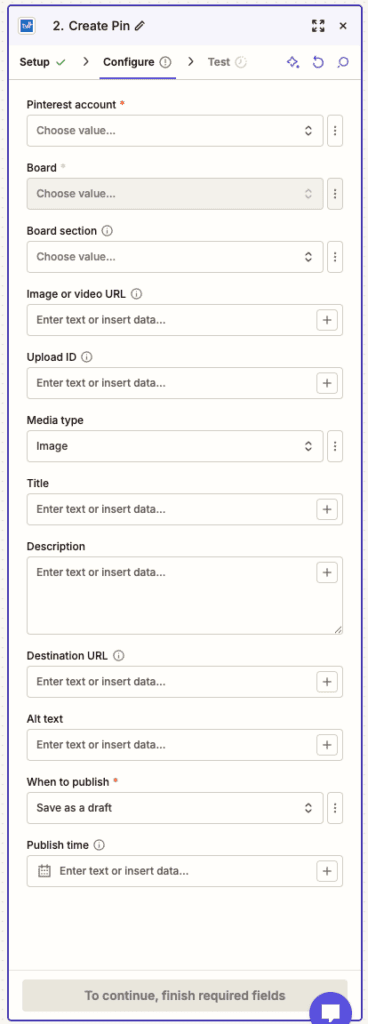
Every field in a Create Pin step. Pinterest account, Board and When to publish are required.
Save this guide for later. Pin whichever of these fits your boards best.


FAQ
Does Tailwind have a Zapier integration?
Yes. As of October 2026, Tailwind is a public app on Zapier. It has one trigger (New Published Pin) and actions to create, schedule, update, unschedule and delete Pins, upload media, generate SmartPins and Pin copy, and manage saved keywords.
Can Zapier publish Pins to Pinterest automatically?
Zapier can schedule Pins through Tailwind, but Pinterest’s developer terms require a person to choose each Pin that gets published. Build Zaps so that either a person approves each Pin before it’s scheduled – an “Approved” column, for example – or the Zap saves drafts for you to review.
Do Tailwind’s Zapier actions use credits?
Scheduling a Pin, Generate SmartPins and Generate Pin Copy use your plan’s credits, the same as in the dashboard. Saving drafts, uploading media, editing, unscheduling, deleting and keyword actions don’t. Zapier tasks count against your Zapier plan separately.
Can I edit or delete a published Pin from Zapier?
No. Zapier works on drafts and scheduled Pins. Change published Pins on Pinterest.
Do I need Zapier if I already connect Tailwind to an AI assistant?
They do different jobs. Your assistant is for conversational work that needs judgment. Zapier runs the same steps every time something happens in another app. You can use both.
Does Tailwind’s Zapier app work with Instagram or other networks?
No. Tailwind is a Pinterest marketing platform, and the Zapier app works with Pinterest only.
Pick one recipe and build it this week
Recipe 6 (Slack) and recipe 2 (drafts from a folder) are the quickest to set up and the easiest to check. You’ll know it’s working when the first Pin shows up in Slack or your Tailwind drafts without you touching it.
Zapier is one more way into Tailwind, alongside the dashboard and your AI assistant: AI-assisted Pinterest marketing, connected to the tools you already run your business on.
Try Tailwind free – no credit card needed.
Related resources
- Everything you can do with Tailwind from ChatGPT, Claude and other AI assistants
- Introducing Tailwind’s MCP server
- SmartPin: fresh Pins designed from your pages
- Pinterest SEO in 2026: the complete guide
- How Pinterest search ranks Pins
- Shopping keywords vs. idea keywords
- Pinterest keyword tools compared
- Getting ready for Pinterest’s holiday shopping season