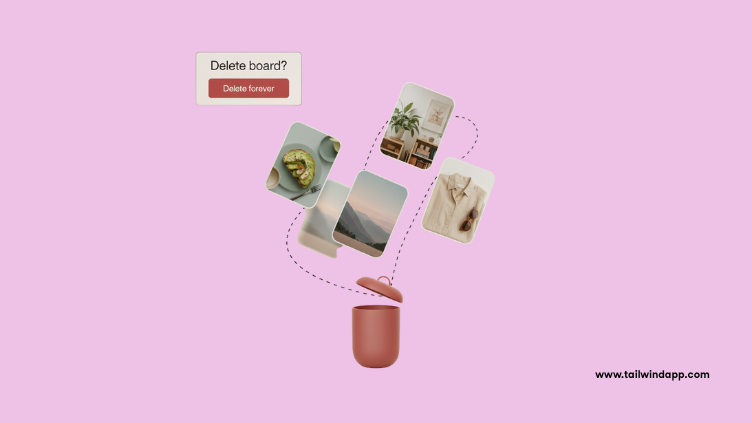
Sometimes a Pinterest board just doesn’t serve its purpose anymore. Maybe your interests have shifted, maybe the board feels outdated, or maybe you just want a fresh start. The good news? Deleting a Pinterest board is quick and easy. In this guide, we’ll walk through how to delete a Pinterest board step by step on both desktop and mobile. We’ll also cover when you might want to delete (versus edit or archive), what happens to your Pins once the board is gone, and a few smart alternatives to consider before hitting delete.
What Happens When You Delete a Pinterest Board?
Before you start, it’s important to know what deleting a board really means. When you delete a board: all the Pins saved to that board are permanently removed, if the board was public, followers won’t be able to see it anymore, and the deletion is permanent — there’s no “undo” button. So if you’ve spent a lot of time curating Pins, make sure you really want to remove them before taking action.
Why You Might Delete a Pinterest Board
Not every board needs to stick around forever. Here are common reasons people choose to delete: Irrelevant boards — maybe you no longer need a board like “2022 Gift Ideas.” Off-brand boards — for business accounts, unrelated boards can confuse your niche. Duplicate content — sometimes we create two boards that serve the same purpose. Decluttering — a clean profile with fewer, more focused boards often performs better. That said, deleting isn’t always the best solution — and later, I’ll share a few alternatives.
How to Delete a Pinterest Board (Step-by-Step)
Here’s exactly how to remove a board from your account.
On Desktop
- Log into your Pinterest account and go to your profile. 2. Select the board you want to delete. 3. Click the three dots (…) at the top of the board. 4. Choose “Edit board.” 5. Scroll to the bottom and click “Delete board.” 6. Confirm by clicking “Delete forever.”
On Mobile (iOS & Android)
- Open the Pinterest app and tap your profile picture. 2. Choose the board you want to delete. 3. Tap the three dots (…) in the top-right corner. 4. Select “Edit board.” 5. Scroll down and tap “Delete board.” 6. Confirm when prompted. And that’s it — your board (and everything on it) is gone.
Alternatives to Deleting a Pinterest Board
Sometimes, deleting isn’t necessary. Here are a few other options to consider: Archive the board. Archiving hides a board from your profile and stops it from being recommended, but it doesn’t permanently delete your Pins. Perfect for boards you may want later. Make it secret. Switch the board’s visibility to private so only you can see it. Great for personal projects or old collections you don’t want public anymore. Edit the board. Update the name, description, or sections to give it a new purpose. 👉 Pro tip: Businesses often archive or edit boards instead of deleting, since every Pin saved over time adds signals to Pinterest’s algorithm.
Tips for Managing Pinterest Boards
Whether you’re deleting or editing, here are a few best practices for board management: Keep your boards relevant. Focus on topics that fit your niche or goals. Use keyword-rich titles and descriptions. This helps Pinterest understand what your board is about. Review boards regularly. Clean up once or twice a year to stay organized. Plan ahead with automation. Tools like Tailwind’s Pinterest Scheduler help you keep boards active with Fresh Pins without adding clutter.
Should Businesses Delete Boards?
If you’re using Pinterest for marketing, it’s worth thinking twice before deleting. Old boards may still drive traffic from search. Instead of deleting: rebrand the board with a new title and description, add new Fresh Pins to revive it, or archive only if it no longer fits your brand. According to Tailwind’s Pinterest Benchmark Study, accounts that maintain active, focused boards tend to see stronger distribution and engagement. So, businesses benefit from optimizing instead of removing valuable boards.
Next Steps: Keep Your Boards Organized and Active
Deleting a Pinterest board is sometimes the right move, but in most cases, smart management and optimization will give you better results. Instead of wiping boards out, you can refresh them with new Fresh Pins created with Tailwind SmartPin (automatically generates optimized designs for your content each week), updated descriptions with keywords that match current trends, and a posting schedule tailored to your audience, using Tailwind’s recommended times. By managing boards this way, you’ll keep your profile polished while making Pinterest work harder for you.
Final Thoughts
Knowing how to delete a Pinterest board is useful, but it should be a thoughtful decision. Once it’s gone, there’s no getting it back. For most people, archiving or editing is a better option — especially if you’ve built up Pins that still bring value. If you do choose to delete, the process is simple and takes just a few clicks on desktop or mobile. Keep your boards focused, updated, and relevant, and you’ll create a Pinterest profile that not only looks clean but also attracts the right audience.
FAQ
What happens to my Pins if I delete a board?
All Pins saved to that board are permanently deleted, and you cannot recover them.
Can I recover a deleted Pinterest board?
No — once a board is deleted, it’s gone forever. If you think you may want it later, consider archiving instead.
Should I delete or archive a board?
Delete if the board truly has no use. Archive if you might want it again, since archiving hides it without removing Pins.
Will deleting a board affect my followers?
Followers won’t be notified, but if the board was public, they’ll no longer see it or its Pins.
Can I delete multiple boards at once?
Currently, Pinterest only allows you to delete boards one at a time.